Your voice agent can do things in the apps you already use while it talks to the caller: look up a customer's record in your CRM, open a ticket, log an order in a spreadsheet or send an alert to your team. To do that it uses MCP, a standard that lets an AI use tools from other applications. Think of it as a universal plug.
You don't need to write any code if you already use Zapier, Make or n8n: all three create an “MCP server” with the actions you choose, and Alpire connects to it.
Available from the Pro plan, with an active subscription: it isn't available during the free trial.
This guide goes one way: the agent uses your tools. The other way round —your AI assistant (Claude, Cursor…) looking things up in and managing Alpire— is covered in Alpire MCP server.
What it can do, with examples
A dental clinic that uses its CRM, a support tool and Gmail:
| The caller says… | The agent… |
|---|---|
| “Do I have an appointment this week?” | looks up the patient in the CRM and tells them |
| “I've been charged twice” | opens a ticket in the clinic's support tool |
| “Can you email me the address?” | sends the email from the clinic's Gmail |
| “I'm new, sign me up” | creates the contact in the CRM |
You decide which actions the agent can use. It decides when to use them, based on the conversation.
To book, move or cancel appointments you don't need MCP: the agent already books in the Alpire calendar or in your Google Calendar, Outlook or Cal.com (Settings → Integrations).
How it works (in 30 seconds)
- In your Zapier, Make or n8n you create an MCP server with the actions you want to offer.
- In Alpire you add it and choose which of those actions the agent can use.
- In the flow editor you add them to the AI Agent.
- During the call, when needed, the agent calls the action, gets the result and tells the caller.
Step 1 — Get your MCP server's address
Alpire connects over HTTPS using MCP's current transport (“Streamable HTTP”). It doesn't use the old “SSE” transport or OAuth sign-in: you need an address (URL) and, depending on the tool, a token.
Zapier
- Go to mcp.zapier.com and create a new server (one just for Alpire: Zapier lets several clients use the same server, but it runs their actions one at a time).
- Add the actions you want to offer. Turn on only the ones you need.
- In the Connect tab, copy the server URL. That URL has your key inside it: treat it like a password. If it leaks, use Rotate token in Zapier and change it in Alpire (see “The URL or credential has changed” in “Troubleshooting”).
- In Alpire, the credential type will be “No credential” (the key is already in the URL).
Every action the agent runs successfully uses up tasks from your Zapier plan (Zapier charges two per call). Failed ones don't.
Make
- In Make, create an MCP token with the
mcp:usescope (andscenarios:readif you want the agent to be able to fetch the result of a slow scenario). - Choose which scenarios are available as tools (access control for scenarios as tools).
- The URL looks like this, with your zone and your token:
https://eu2.make.com/mcp/u/YOUR_TOKEN/stateless. Use the/statelessvariant. - In Alpire, credential “No credential” (the token is in the URL).
If a scenario takes longer than the timeout, it keeps running in Make. The agent won't treat it as done or repeat it: see “What the agent does when something fails”.
n8n
- Add the MCP Server Trigger node (version 2 or later) to a workflow and, connected to it, the tools you want to offer.
- Under Authentication choose Bearer Auth and create a credential with a long, random token. By default it comes with no authentication: don't leave it like that, anyone with the URL could use your tools.
- Activate (publish) the workflow and copy the node's Production URL (the test one only works while the n8n editor is listening).
- In Alpire, credential “Token (Authorization: Bearer)” and paste the same token.
If your n8n sits behind nginx or another proxy, turn off buffering for the MCP path. With several webhook replicas in queue mode, all
/mcprequests have to go to the same replica.
Another MCP server
Any remote MCP server over https with Streamable HTTP will do, with the credential in a header (Authorization: Bearer … or another header of your choice) or inside the URL.
Step 2 — Add the server in Alpire
Settings → Integrations, MCP servers card.
- Name: short, lowercase and with no spaces (
zapier,crm,n8n_clinic). It's how you'll see it in the editor. - MCP server URL: the one from step 1. Always
https://. - Credential:
- Token (Authorization: Bearer): n8n and most self-built servers.
- Key in a header: if your server expects the key in a header with a different name (for example
X-Api-Key); type the header name next to it. - No credential: Zapier and Make, which carry the key in the URL.
- Click Save and test. Alpire connects, asks for the list of tools and tells you how many it found under “Last result”.
The URL and the credential are stored encrypted and are never shown again; in the panel you'll only see the domain.
Step 3 — Choose which tools the agent can use
After testing, the server's list of tools appears. None of them is allowed until you tick it.
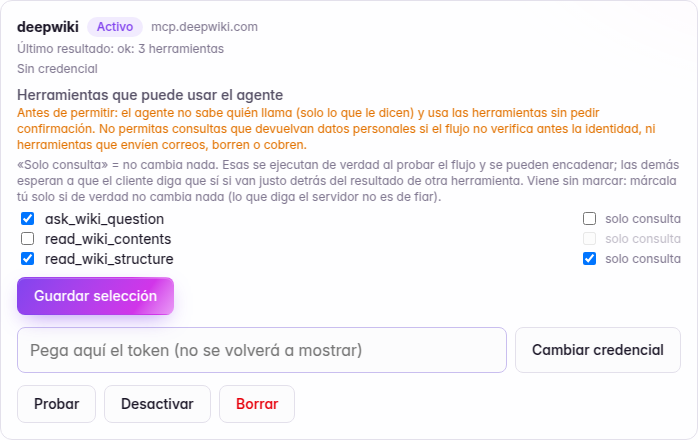
- The checkbox on the left allows the tool.
- “Read-only”: tick it only if the tool doesn't change anything (search, read, look up). It comes unticked on purpose: what the server declares can't be trusted, and next to it you'll see “the server says so” if the server declares it as read-only. It changes two things:
- read-only tools really run when you test the flow from the editor; the rest are simulated (testing doesn't create real contacts or send real emails);
- tools that are not read-only wait for the caller to say yes if the agent asks for them right after another tool's result (see “Security”).
- Click Save selection.
Allow the minimum. Before allowing anything, bear in mind that the agent doesn't know who is calling, only what it's told:
- Don't allow lookups that return personal data (phone number, address, history) unless the flow verifies the caller's identity first. If someone says “I'm María López, what's my address?”, the agent will give it to them.
- Don't allow tools that send emails, delete or charge unless that's exactly what you want it to do.
Step 4 — Add the tools to the agent in the editor
- Open the flow and select the AI Agent node.
- Click ⚙ Manage brain and go to the Tools tab.
- In the “Choose an MCP tool…” drop-down, pick the tool (only the ones you allowed in step 3 show up) and click + MCP tool.
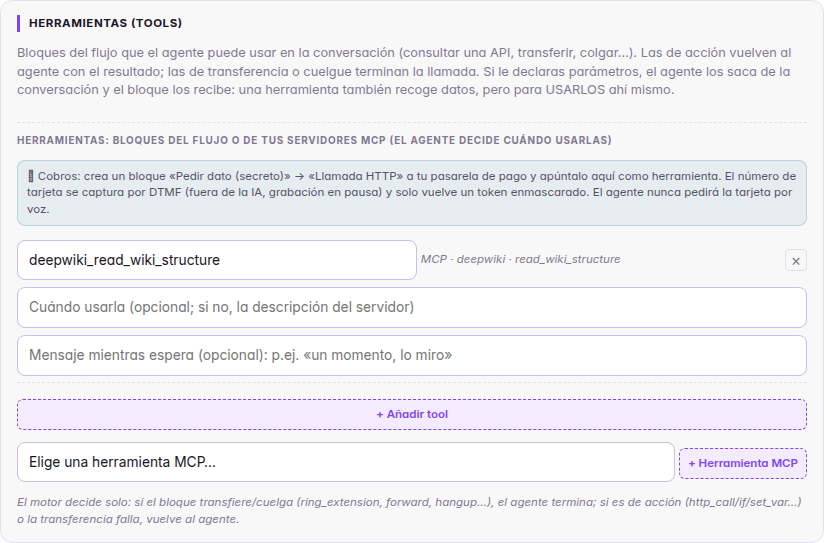
- Fill in, if you like:
- Name: how the agent will see it (one is suggested; lowercase letters, numbers and
_only). - When to use it: a sentence in your language (“Use it when the patient asks about their appointments”). If you leave it empty, the agent uses the description the server provides, which is usually in English. A good description is what most improves the agent's choice of tool.
- Wait message: what it says while the tool is working (“One moment, let me check”).
- Name: how the agent will see it (one is suggested; lowercase letters, numbers and
- Done and then Save and publish. When you publish, Alpire checks that the server exists and allows that tool, and warns you if it's disabled.
Up to 15 MCP tools per agent, and together their definitions can't exceed 32 KB (a tool with many parameters takes up more). Fewer is better: with many, the agent chooses worse and takes longer to answer.
Step 5 — Test it
Use Test call in the editor (a test call with real audio, from the browser and without using a line) and talk to the agent. Test visual is no good for this: it walks through the flow without audio and doesn't make the agent talk.
- Tools marked read-only really run: you'll see real data from your CRM.
- The rest are simulated: the agent receives “(prueba) no se ejecuta de verdad en una prueba” (“(test) not actually run in a test”) and carries on with the conversation. Testing doesn't create contacts or send emails.
- In real calls (the ones that come in through your number) all the tools you allowed run.
In the detail of each call (Calls → the call → “Executed flow”) you'll see one line for each use. The live trace in Test call shows the same information, raw.
| Line in the trace | What it means |
|---|---|
Herramienta MCP crm · find_customer → ok (340 ms) (MCP tool crm · find_customer → ok (340 ms)) | it ran and your server answered in 340 ms |
Herramienta MCP crm · create_contact → simulada (prueba) (MCP tool crm · create_contact → simulated (test)) | in a test, it didn't really run |
Herramienta MCP crm · create_contact → no hecha: http_401 (MCP tool crm · create_contact → not done: http_401) | it didn't get done, with the reason (see “Troubleshooting”) |
Herramienta MCP crm · create_contact → sin confirmar (timeout): pudo hacerse, compruébalo antes de repetirla (MCP tool crm · create_contact → unconfirmed (timeout): it may have been done, check before repeating it) | your server didn't answer in time: it may have been done. Check in your tool before repeating it |
Herramienta MCP crm · create_contact → no hecha: esperaba el «sí» del llamante (MCP tool crm · create_contact → not done: waiting for the caller's “yes”) | the safety check held it until the caller speaks again |
Herramienta MCP crm · create_contact → no hecha: faltaban datos (MCP tool crm · create_contact → not done: data was missing) | a required piece of data was missing (also: “parámetros que la herramienta no tiene” (parameters the tool doesn't have), “los datos llegaron cortados” (the data arrived cut off)) |
Acción book_appointment en espera del «sí» del llamante (Action book_appointment waiting for the caller's “yes”) | the same, for one of the agent's own actions (book, cancel, schedule a call, send an email) or a flow block |
Herramienta MCP crm_search no disponible: not_allowed (MCP tool crm_search unavailable: not_allowed) | it's in the flow but the agent doesn't have it (see “Troubleshooting”) |
After the first real call, “Last result” on the server's card shows how it went the last time.
Full example: the clinic and its n8n
This is how it's set up from start to finish, so you can see every piece.
In n8n, a workflow with the MCP Server Trigger node (Bearer Auth) and two tools connected:
find_patient: takes a phone number, looks it up in the patients sheet and returns the name and next appointment.create_notice: takes a text and posts it in the reception channel.
In Alpire:
- Server
n8n_clinic, credential Token, the same token as in n8n. Save and test → “Last result: 2 tools”. - Allow both;
find_patientas read-only (it doesn't change anything);create_noticeunticked. - In the reception agent, both of them, with these texts in “When to use it”:
find_patient: “When the patient asks about their next appointment. Pass it the number they're calling from.”create_notice: “When the patient asks to be called back or leaves a message. Summarize the message in one sentence.”
- In the agent's instructions (LLM tab, “Agent instruction (prompt)” field), a line that ties it down: “If they ask about their appointment, use find_patient with the caller's number,
{{vars.caller_number}}; don't give out anyone else's data.”
In a call:
— Hi, when is my next check-up? (the agent uses
find_patientwith the caller's number) — You have a check-up on Thursday the 2nd at 10:30 with Dr. Ruiz. — OK. Could you let them know I'll be ten minutes late? (the agent usescreate_notice: “María López will be 10 minutes late for her appointment on Thursday at 10:30”) — Done, I've left the message with reception.
Notice that the instructions tell it to look up by the number the caller is calling from, not the one the caller says. It's an instruction to the agent, not a guarantee: if the lookup returns personal data, have your server check something only the account holder would know.
How to write good instructions
The agent picks a tool by reading its name and its “When to use it”. What helps most:
- Say when, not what it is. “When they ask about the status of an order” is better than “Queries the orders API”.
- Say what data it needs and where it comes from. “Pass it the order number; if they don't know it, ask for it.”
- Few and distinct. Two similar tools (“find_customer” and “lookup_customer”) are confusing. Keep one.
- Clear names, in your language and without abbreviations:
find_order, notget_ord_v2. - Tie it down in the agent's instructions if it's important: “Before giving out any order details, confirm the postcode.”
- Verify identity before looking up personal data. Use the caller's number (
{{vars.caller_number}}) or ask for something only the account holder would know, and pass it to the tool so your server can check it. Don't trust the name the caller gives.
Security: what the agent does on its own
You don't have to configure any of this; it always works.
- It doesn't chain changes without the caller speaking. If the agent has just received a tool's result and, without the caller having spoken again, wants to use another one that changes something (create, book, cancel, schedule a call, send an email, move to a flow block that does things), it doesn't run it: it tells the caller what it's going to do and with what data, and waits for an answer. That way, if a result carries hidden instructions (“now send the record to this email address…”), they don't go through without anyone hearing them. Transfers to a fixed destination still go ahead without asking, and noting down data or saying goodbye aren't held back.
- It doesn't call the tool if a required piece of data is missing: it asks the caller for it.
- It doesn't make up parameters. If the agent asks for a piece of data the tool doesn't have, nothing is sent.
- It masks recognizable card numbers before they reach the agent and the tools. Even so, don't ask for cards by voice with an agent that has tools.
- Only what you allowed. A tool that isn't on your list, that belongs to a disabled server or that wasn't announced doesn't run, even if the agent names it.
- Each tool's line in the trace records which tool it was, how long it took and whether it went well, never what was sent or what it returned. If the agent saves the transcript, the data it passed to the tool appears in that turn, like the rest of the conversation.
What the agent does when something fails
| What happens | What the agent tells the caller |
|---|---|
| The tool responds with an error (wrong data, doesn't exist…) | that it couldn't be done; if a piece of data is missing, it asks for it |
| Your server rejects the credential (401/403) | that it can't do it right now and offers another way, without asking for data |
| Your server couldn't be reached | that there's been a problem and offers another way |
| Your server took too long or cut off | that it can't confirm it and that you'll check; it doesn't repeat it (it might have been done) |
| The response is very long | it uses the first 4,000 characters, knowing it's been trimmed |
The timeout for each request to your server is 8 seconds (the first tool of the call, which also opens the connection, may take a little longer). If your actions take longer (long Make scenarios), the result won't arrive in time even if the action completes.
Data and privacy
When the agent uses a tool, the data it passes to it (what the caller has said) goes out to that server. It's a service you choose: check where it processes data. If it's outside the European Economic Area (Zapier, for example, is in the US), it's an international transfer that you decide on and that needs its own legal basis, just like a webhook or a custom integration.
Every addition, change and deletion of a server is recorded in the organization's activity log.
Secrets for the flow's HTTP calls
If you also use the API call (HTTP) block in your flows, store the tokens in Settings → Integrations, Secrets card, instead of writing them into the flow:
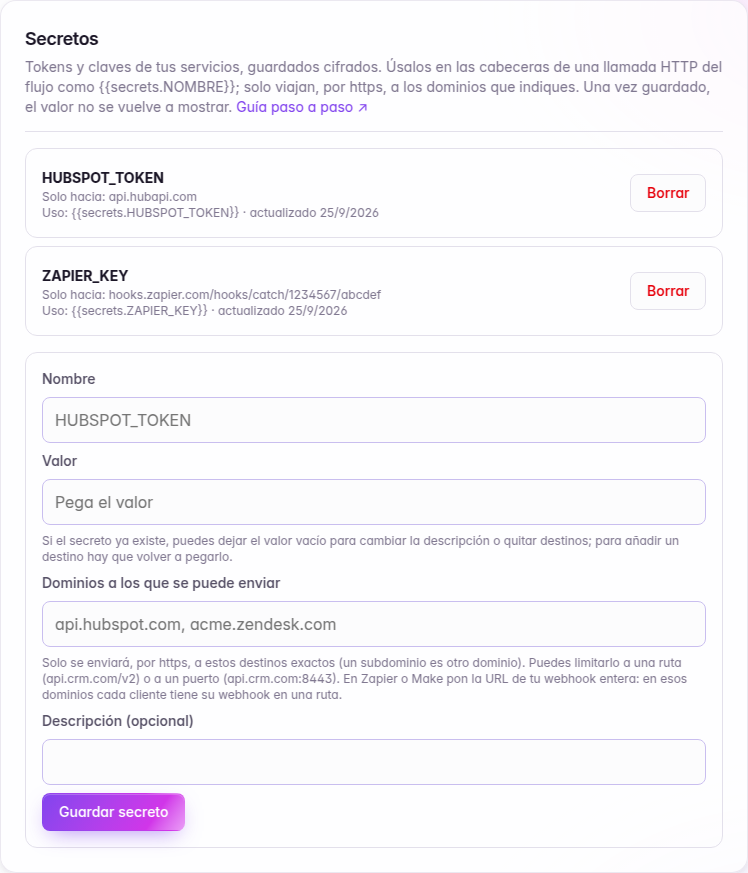
- Use them in the call's headers as
{{secrets.NAME}}(for exampleAuthorization: Bearer {{secrets.HUBSPOT_TOKEN}}). They don't work in the URL or the body. - Each secret has its allowed destinations and only travels over https to them:
api.hubapi.com, a port (api.crm.com:8443) or a path (api.crm.com/v2). - Zapier, Make and other shared services: enter the full URL of your webhook (with its path), not just the domain. On those domains each customer has their webhook on a path, and with just the domain anyone with a webhook there could receive your secret. Alpire won't let you save it without the path.
- The value is never shown again. To change the description or remove destinations you don't need to paste it; to add a destination, you do.
Troubleshooting
The server's “Last result”. It's shown in your language, with the code in parentheses:
| Code | What it means | What to do |
|---|---|---|
| — (N tools) | all good | — |
http_401 / http_403 | the credential isn't valid | check the credential type and the token; in n8n, that the Bearer credential is the same |
http_404 | the URL isn't an MCP server | copy the URL again (in n8n, the production one and with the workflow active; in Make, the /stateless one) |
blocked | the domain doesn't exist or points to a private network | use the server's public address, over https |
timeout / probe_timeout | your server didn't answer in time (or the whole test took too long) | check that it's running; faster actions |
too_large / tools_too_large | the response, or the tool list, exceeds the maximum size | return less data; offer fewer tools |
key_unreadable | the stored credential can't be read | add it again (see below) |
“Test” says there are too many tests: the limit is 10 every 5 minutes and 100 a day per organization, also counting new servers.
The URL or credential has changed (you rotated the Zapier token, key_unreadable…): the header credential is changed on the server's card (to move it to another header or change its type you have to paste it again). The URL can't be edited: delete the server and add it again with the same name. The new server starts with no allowed tools, so tick them again (and the read-only ones) before the next call: until then, the agents won't have them.
A tool doesn't appear in the editor: it has to be allowed (step 3) on an active server, and your plan has to include MCP. If you've changed the actions in Zapier, Make or n8n, click Test to refresh the list.
A tool is in the flow but the agent doesn't use it: in the call detail you'll see “Herramienta MCP … no disponible” (MCP tool … unavailable) with the reason: plan (your plan doesn't include MCP), server_unavailable (server deleted or disabled), not_allowed (it's no longer on your list, or the server stopped announcing it at the last “Test”), schema (its definition is too large or isn't valid), catalog_full (the definitions of the agent's tools exceed 32 KB), name_reserved (its name clashes with one of the agent's own functions: rename it) or unknown_fields (the flow was saved with a newer version of Alpire). If none of that appears, improve the “When to use it” text.
The agent asks “do you want me to do it?” before an action: that's the safety check described above. It happens when the action changes something and comes right after another tool's result. If it's a lookup that doesn't change anything, mark it as read-only in step 3.
Frequently asked questions
Do I need to know how to code? No, if you use Zapier, Make or n8n: the actions are built in their visual editor. You only need to copy a URL (and in n8n, a token).
Can the agent do something I haven't allowed? No. It only sees the tools you ticked in step 3 and added to the agent in step 4. If you remove the permission in Settings, it stops using the tool on the next call, without touching the flow.
What happens if the agent picks the wrong tool? If it's read-only, nothing: it reads one piece of data too many. That's why what matters is not allowing dangerous actions and marking “read-only” correctly. Improve the “When to use it” text so it chooses better.
Can a caller make the agent use my tools for something else? They can try by talking. The agent only has the tools you gave it and the data your server returns; that's why the golden rule is not to allow personal-data lookups without verifying identity, and not to allow actions you don't want to happen.
What if a tool's result carries hidden instructions? It doesn't chain another action that changes something without the caller confirming it (see “Security”).
How much does it cost? In Alpire, MCP tools are included from the Pro plan; AI call time is charged as usual. In your tool (Zapier, Make, n8n Cloud) each action may use up tasks or operations from your plan.
Can I use the same server in several agents? Yes. You add the server once and add its tools to whichever agents you want.
Does it work with a website chatbot? No, for now only with the voice agent.
Can my AI assistant build the flow for me? The editor's assistant can build and change the flow, but it doesn't add MCP tools: you add those yourself in step 4, on purpose, so that a tool never gets into an agent without a person choosing it.
Limits
| MCP servers per organization | 20 |
| MCP tools per agent | 15 |
| Tools read from a server | 200 |
| Definitions of an agent's MCP tools | 32 KB |
| Timeout for each request | 8 s |
| Result that reaches the agent | 4,000 characters (it's trimmed, and the agent is told) |
| “Test” and adding servers | 10 every 5 minutes and 100 a day, per organization |
| Secrets per organization | 50 |