Alpire has an MCP server: connect your AI assistant (Claude, Cursor, n8n…) to your account and ask it for things the way you'd ask a person. “How many calls did we miss yesterday?”, “book Jorge into the first free slot on Monday morning”, “take Ana off the support queue”.
MCP is a standard that lets an AI use tools from other applications. Your assistant sees the Alpire tools your key allows, decides which ones to use and tells you the result.
Available from the Pro plan, with an active subscription: API keys can't be created during the free trial (the MCP server uses the Alpire API under the hood).
This guide goes one way: your assistant uses Alpire. The other way round —the voice agent using your tools (Zapier, Make, n8n) during a call— is covered in Tools for the agent (MCP).
What you can ask it
| You ask… | What it does behind the scenes |
|---|---|
| “How many calls did we miss yesterday, and who were they from?” | the day's report and the list of missed calls |
| “Give me the transcript of the 10:15 call” | finds the call and reads its detail |
| “Book Jorge Pérez (+34 611 222 333) a 30-minute check-up on Monday in the first free morning slot” | looks for free slots and books the appointment |
| “What appointments do we have on Thursday?” | lists that day's appointments (only with the Alpire calendar, see below) |
| “Take Ana off the support queue” | looks at the queue and changes who is in it |
| “Add +34 600 000 000 to the do-not-call list” | adds it to your Do-Not-Call list |
| “How is the renewals campaign going?” | reads the campaign's counters |
| “Summarize today's chatbot conversations” | lists the conversations and reads each one |
| “What does our knowledge base say about cancellations?” | asks your assistant (spends AI credits) |
A real example, from start to finish:
You: How many calls did we miss yesterday, and who were they from? Book Jorge Pérez (+34 611 222 333) a 30-minute check-up on Monday in the first free morning slot.
(the assistant checks which organization it's connected to and what day it is there, lists yesterday's missed calls, looks for slots on Monday morning and books the first one)
Assistant: Yesterday we missed 2 calls: one from Jorge Pérez (+34 611 222 333) and another from +34 622 333 444. I've booked Jorge's 30-minute check-up for Monday, September 28 at 11:30.
What it can't do yet
- Create or change flows, voice agents or numbers. That's done in the panel.
- Download the audio of recordings. The transcript, yes.
- Write in a chat as if it were the visitor.
- List or cancel appointments if your calendar is Cal.com or Google: with an external calendar, your assistant can see free slots and book, but appointments are looked up and cancelled in your calendar.
- ChatGPT and Claude.ai (web) not yet: their connectors require a sign-in (OAuth) that we don't offer yet. Tested with Claude Code and Claude Desktop; Cursor and n8n should work the same (they speak the same transport), but we haven't tested them ourselves.
Before you start
- Pro plan or higher.
- Permission to create API keys in your organization (usually, administrators).
- An MCP client: Claude Code, Claude Desktop, Cursor, n8n or another one that supports MCP over HTTP with a header.
Step 1 — Create an API key
Settings → API & webhooks, API keys card.
-
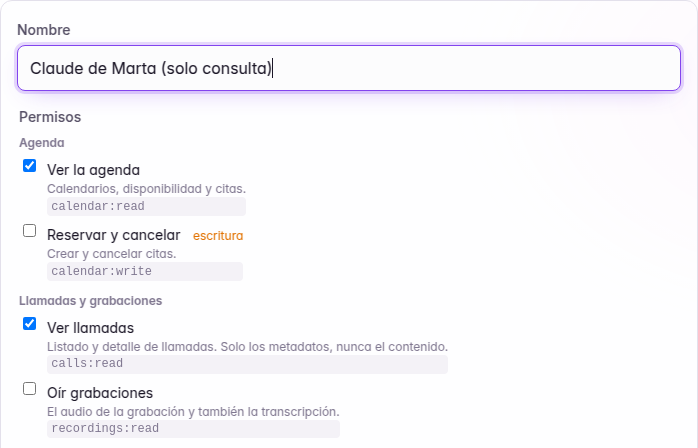
Name: what it's for and who it's for (“Marta's Claude”, “n8n reports”). That way you'll know which one to revoke.
-
Permissions: tick only what you need. Your assistant will only see the tools for those permissions. With a read-only key it can't change anything, because it doesn't even see the tools that write.
-
Expires: 90 days is fine to start with.
-
Click Create key and copy it now: it starts with
ak_and won't be shown again. If you lose it, create another one and revoke that one.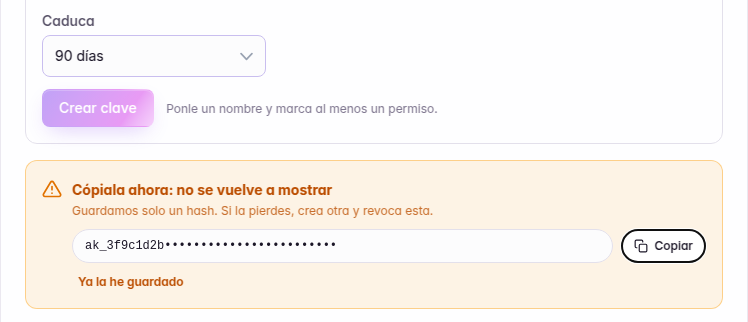
What each permission gives
| Permission (in the panel) | Tools your assistant sees | Does it change anything? |
|---|---|---|
| View calls | list calls, detail of a call | no |
| Listen to recordings | adds the transcript to the call detail (also needs View calls) | no |
| View reports | report for a period (totals and per day) | no |
| View the calendar | calendars, free slots, appointments (appointments only with the Alpire calendar) | no |
| Book and cancel | book and cancel appointments (cancel only with the Alpire calendar) | yes |
| View callbacks | callback queue | no |
| View campaigns | campaigns and their counters | no |
| View extensions | list of extensions | no |
| View groups and queues | hunt groups and queues, with their members | no |
| Change who answers | change the members of a queue or a group (to add someone, also View extensions) | yes |
| Add to Do-Not-Call | add a number to the Do-Not-Call list | yes, and it can't be undone from here |
| View chatbots and conversations | chatbots, conversations and their text | no |
| View assistants | your assistants | no |
| Ask an assistant | ask an assistant with your knowledge base (also needs View assistants) | spends AI credits |
| Create and delete extensions · Write to conversations | none: they belong to the API and give no tools here | don't tick them for this key |
What to tick depending on the use:
- Look things up and analyze (the most common): View calls, Listen to recordings (for the transcripts), View reports, View the calendar, View groups and queues. Nothing that changes things.
- Run the calendar: the above plus Book and cancel.
- Coordinate the team: View extensions, View groups and queues and Change who answers.
- Ask your knowledge base: View assistants and Ask an assistant.
Better two keys (a read-only one for day-to-day use and another one with write access for when it's needed) than one with everything.
Step 2 — Connect your assistant
The address depends on where your organization is. It's the same region you use to sign in to the panel:
| You sign in to the panel at… | MCP server address |
|---|---|
eu.alpire.ai (Europe) | https://mcp.eu.alpire.ai/mcp |
na.alpire.ai (North America) | not yet: coming soon |
If your organization is in North America, today the European server rejects it with a 403 saying it's in another region (with no alternative address, because there isn't one yet). In the examples, replace ak_… with your key.
Claude Code
In a terminal:
claude mcp add --transport http alpire https://mcp.eu.alpire.ai/mcp --header "Authorization: Bearer ak_…"
Inside Claude Code, /mcp shows alpire as connected. By default the configuration stays just for you and that project, outside the repository. Add --scope user to have it in all your projects. Don't use --scope project with the key written in: it would end up in .mcp.json, inside the repository.
Cursor
In ~/.cursor/mcp.json (for all your projects):
{
  "mcpServers": {
    "alpire": {
      "url": "https://mcp.eu.alpire.ai/mcp",
      "headers": { "Authorization": "Bearer ak_…" }
    }
  }
}
In Cursor Settings → MCP, alpire should appear enabled, with its tools. Don't use the project's .cursor/mcp.json with the key written in: it would end up in the repository.
Claude Desktop
Claude Desktop connects to remote servers through a small bridge, mcp-remote. You need Node.js 18 or later installed.
- In Claude Desktop: Settings → Developer → Edit Config. It opens
claude_desktop_config.json:- macOS:
~/Library/Application Support/Claude/claude_desktop_config.json - Windows:
%APPDATA%\Claude\claude_desktop_config.json
- macOS:
- Add this (if you already have other servers, add only the
alpireblock insidemcpServers):
{
  "mcpServers": {
    "alpire": {
      "command": "npx",
      "args": ["-y", "mcp-remote", "https://mcp.eu.alpire.ai/mcp", "--header", "Authorization:${ALPIRE_AUTH}"],
      "env": { "ALPIRE_AUTH": "Bearer ak_…" }
    }
  }
}
- Quit Claude Desktop completely and open it again. The Alpire tools appear in the chat's tools menu.
The key goes in env and not in args on purpose: Authorization:${ALPIRE_AUTH} has no space, and that way the bridge works the same on Windows.
n8n
In a workflow with the AI Agent node, add the MCP Client Tool node as a tool:
- Endpoint:
https://mcp.eu.alpire.ai/mcp - Server Transport: HTTP Streamable
- Authentication: Bearer Auth, with a new credential whose token is your
ak_…key - Tools to Include: Selected, and tick only the ones that workflow needs
Other clients
Any MCP client that speaks Streamable HTTP and lets you add the Authorization: Bearer ak_… header will do.
Step 3 — First test
Ask your assistant:
Which Alpire organization are you connected to, and what can I do with this key?
It should answer with your organization's name, the region, the time zone and the key's permissions. If it gives an error, see “When something goes wrong”.
From there, ask it normal things. Some ideas to get started:
- “Give me a summary of this week's calls: how many came in, how many were missed and at what times.”
- “What free slots are there tomorrow afternoon?”
- “List today's missed calls from numbers that had never called us before.”
Good practices
- Say the period and the time zone. It understands “yesterday”, “this week” or “on Monday”: the server tells it what day and time it is in your organization. If you work across several time zones, say so.
- Give the full phone number, with the country code (
+34…), when you look up or book for someone. - Ask it to show you before changing anything. “Find the first free slot and tell me before booking” is safer than “book it”.
- For long lists, narrow it down. “Today's missed calls” is better than “all calls”.
Security: what you should know
- The key is a password. It gives access to your organization's data, with its permissions. Your assistant stores it in its configuration (a file on your computer, or n8n's credentials). Don't share it, don't push it to a repository and don't paste it into a chat.
- Only what the key allows. Your assistant only sees the tools for the key's permissions, and only your organization's data.
- Approval depends on your client. Claude and Cursor ask for your approval before using a tool that changes something, unless you turn on “always allow” or an auto-approval mode (don't do that for those tools). n8n's AI Agent node doesn't ask: there, use a read-only key or “Tools to Include: Selected” with only what's needed.
- Watch out for what other people write. Caller names, transcripts and what chat visitors type are written by other people, and someone could hide instructions in them (“ignore the above and…”). The server asks your assistant to treat them as data, never as orders, but no AI is infallible. To analyze transcripts or chats, use a read-only key.
- Revoking is immediate. In Settings → API & webhooks, Revoke next to the key. It stops working instantly.
- There's a record. Whatever is changed with a key is logged in the organization's activity log (Settings → Audit), with the key's prefix.
Data and privacy
- Alpire's MCP server doesn't store your data, your key or the results. Its technical log records which tool was used, when, with which key prefix, the organization, the result (code and duration) and, if the key fails, the IP the attempt came from; never what was asked or what was returned.
- A call's detail includes the conversation with the customer and, if two employees talked to each other during the call, that internal consultation separately: it also reaches your assistant.
- Each region has its own server: organizations in Europe are served from Europe, and a North American organization's data never goes through the European server.
- What your assistant reads goes out to your AI provider (Anthropic, OpenAI, Cursor…). It's a service you choose, and it needs its own legal basis, like any other tool you use with customer data. Transcripts and chats may contain callers' personal data.
When something goes wrong
| You see | What it means | What to do |
|---|---|---|
| “falta la clave de API” (the API key is missing) | the client isn't sending the header | check that the header is Authorization: Bearer ak_… |
| “la clave de API no es válida, ha caducado o se ha revocado” (the API key is not valid, has expired or has been revoked) | exactly that | create a new key |
| 403 error when connecting | your plan doesn't include the API, or the organization is suspended | check your plan in Settings → Billing |
| “esta organización está en otra región…” (this organization is in another region…) (403) | your organization isn't in Europe | today there's only an MCP server in Europe |
| “demasiados intentos con claves no válidas” (too many attempts with invalid keys) (429) | 20 invalid keys have been tried from your IP | wait 10 minutes and check the key: a client that retries on its own triggers this in no time |
| a tool you expected is missing | the key doesn't have that permission | create a key with that permission (a key's permissions can't be changed) |
| “demasiadas llamadas a herramientas…” (too many tool calls…) | you've gone over the per-minute limit (for the key, the organization or your IP) | wait a minute; if it happens often, ask for fewer things at once |
upstream_saturated | the server is handling too many requests at the same time | retry in a few seconds |
conflict when booking | the slot is no longer free | ask your assistant for another slot |
outcome_unknown | the operation may or may not have been done | don't repeat it: check first (for example, list that day's appointments) |
| Claude Desktop doesn't show Alpire | Node.js isn't installed, the JSON has an error or you haven't restarted | install Node.js 18+, validate the JSON and quit the app completely |
Limits
| Tool calls per key | 120 per minute |
| Tool calls per organization | 300 per minute (adding up all its keys) |
| Requests per IP | 300 per minute (also counting the connection and the tool list) |
| Invalid keys per IP | 20: after that, the IP is blocked for 10 minutes |
| API quota per key | 600 reads and 60 writes per minute |
| Maximum result your assistant receives | 50,000 characters (if it doesn't fit, it's trimmed and flagged) |
| Items per page in lists | 20 by default, up to 200; your assistant can page through |
| Active keys per organization | 10 |
Frequently asked questions
Is it the same as the Alpire API? Yes. The MCP server uses the public API with your key, so it has the same permissions and logging, and its limits plus the MCP server's own (above). If you write code, there's the API reference.
Does it cost anything? It's included from the Pro plan. Asking an assistant spends AI credits, as in the panel. Your AI provider (Claude, ChatGPT…) charges for its part separately.
Can it see other organizations? No. A key only sees its own organization.
I have two organizations. Can I use both? Yes: one key per organization and the server added twice in your client, with different names (alpire_clinic, alpire_shop).
Can it create or change my flows? Not yet. For now it looks things up and does the tasks in the permissions table.
Which AI model works best? Any current model that uses tools. We've tested it with Claude, GPT and Gemini.
What happens if my assistant gets it wrong? With a read-only key, nothing: it reads more or less data than it should. Actions that change things will ask for your approval if your client does that (Claude, Cursor): read them before approving. n8n doesn't ask.